My Laptop Battery Was Dead: Here's How Windows Battery Report Proved It
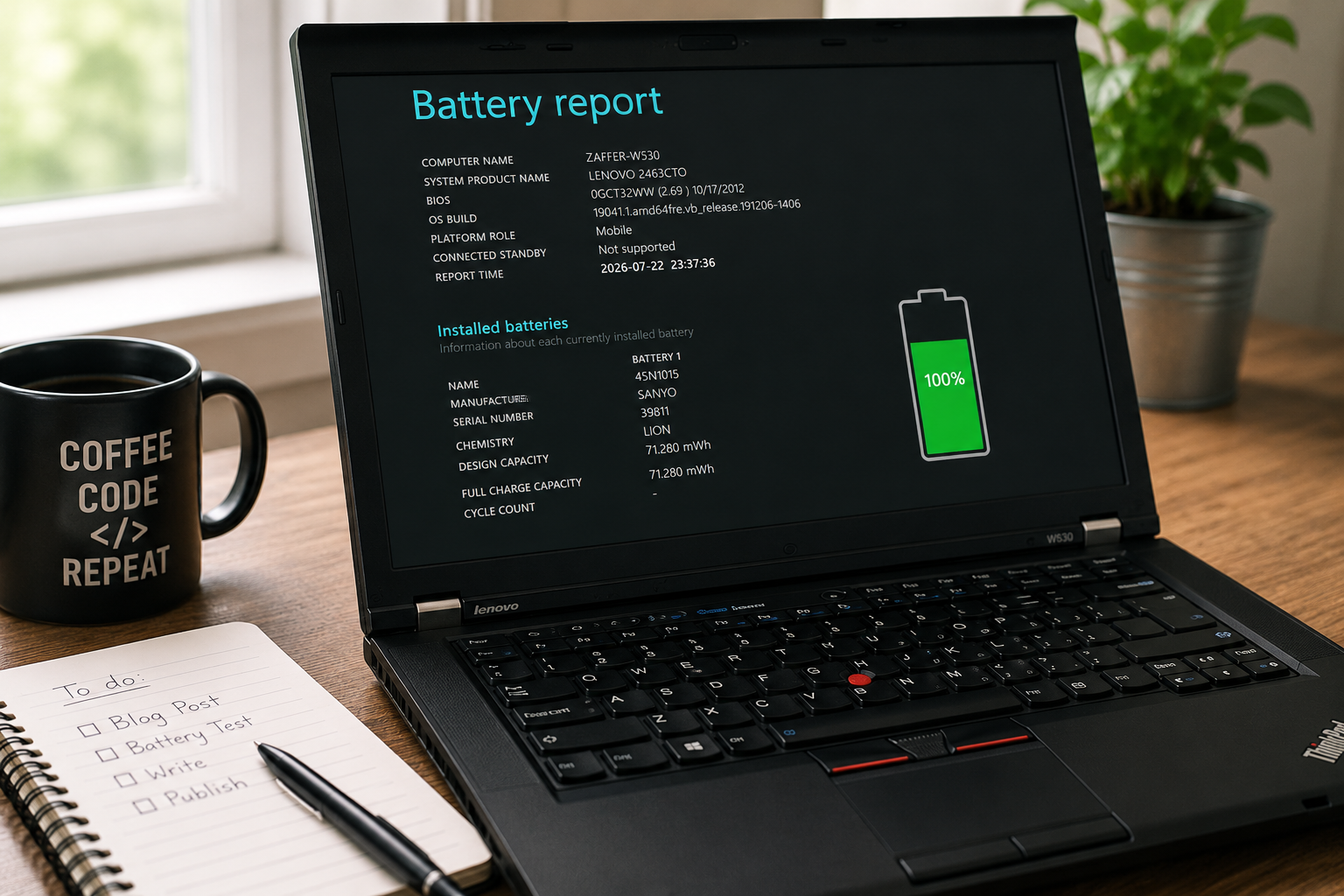 For quite some time, I noticed that my laptop battery wasn’t performing like it used to. The battery percentage dropped much faster than before, and sometimes the laptop would shut down only minutes after unplugging the charger.
At first, I wasn’t sure whether the battery was actually failing or if Windows was simply reporting incorrect battery information.
While researching the issue, I discovered a built-in Windows feature that many users don’t even know exists: Battery Report.
This simple report provides detailed information about your laptop battery, including its design capacity, current health, charge history, and usage history.
Generating My First Battery Report
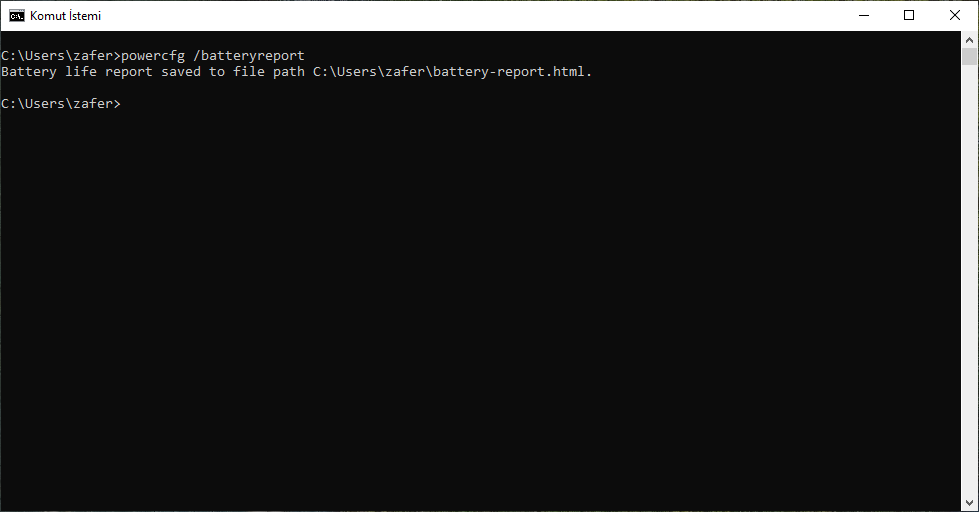
I opened Command Prompt as Administrator and ran the following command:
powercfg /batteryreport
A few seconds later, Windows generated an HTML report and displayed the file location where it had been saved.
My Old Battery Had Reached the End of Its Life
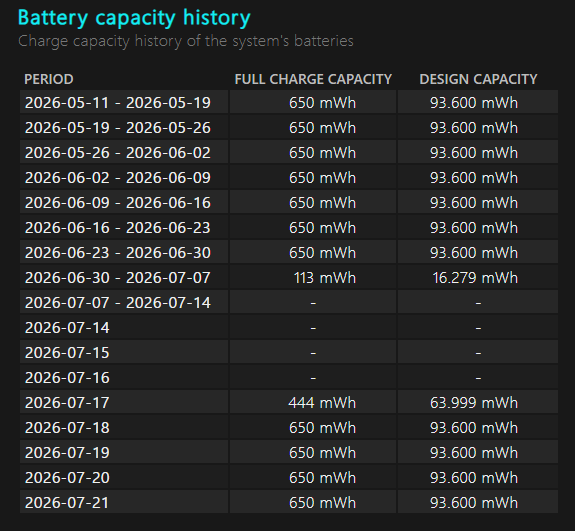
The most interesting section of the report was Battery Capacity History.
My original battery had a design capacity of approximately 93,600 mWh, but its full charge capacity had dropped to only 650 mWh.
That means the battery had lost almost all of its ability to store energy.
No wonder the laptop couldn’t stay on battery power for more than a few minutes.
Until I saw this report, I had only suspected the battery was worn out. Battery Report confirmed it with actual numbers.
Installing a New Battery
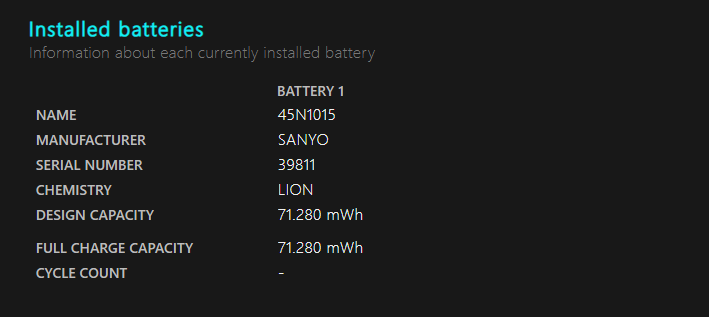
After replacing the battery, I generated another Battery Report.
This time, the results looked completely different.
Specification Old Battery New Battery Design Capacity 93,600 mWh 71,280 mWh Full Charge Capacity 650 mWh 71,280 mWh
Although the replacement battery has a slightly lower design capacity than the original Lenovo battery, it was able to charge to 100% of its rated capacity.
In other words, the battery was brand new and operating exactly as expected.
My First Charging and Battery Test
After charging the battery to 100%, I unplugged the charger and started using the laptop normally.
One thing I immediately noticed was that Windows kept changing the estimated remaining battery time.
At one point it predicted more than four hours of battery life, then only a few minutes later it dropped below three hours.
Initially, I thought something was wrong with the new battery.
However, I later learned that Windows continuously recalculates the remaining time based on the laptop’s current power consumption. Opening applications, browsing the web, or increasing CPU usage can cause the estimate to change dramatically.
The battery percentage itself turned out to be much more reliable than the remaining time estimate.
Around Three and a Half Hours of Real-World Battery Life
During my first complete battery cycle, I used the laptop under normal everyday conditions:
Screen brightness around 80% Wi-Fi enabled Firefox running most of the time Performance-oriented power mode
Under these conditions, the laptop lasted approximately 3 hours and 30 minutes on battery power.
Considering the hardware and usage, I found this to be a reasonable result.
Using a balanced power profile, reducing screen brightness, or relying on integrated graphics could likely extend battery life even further.
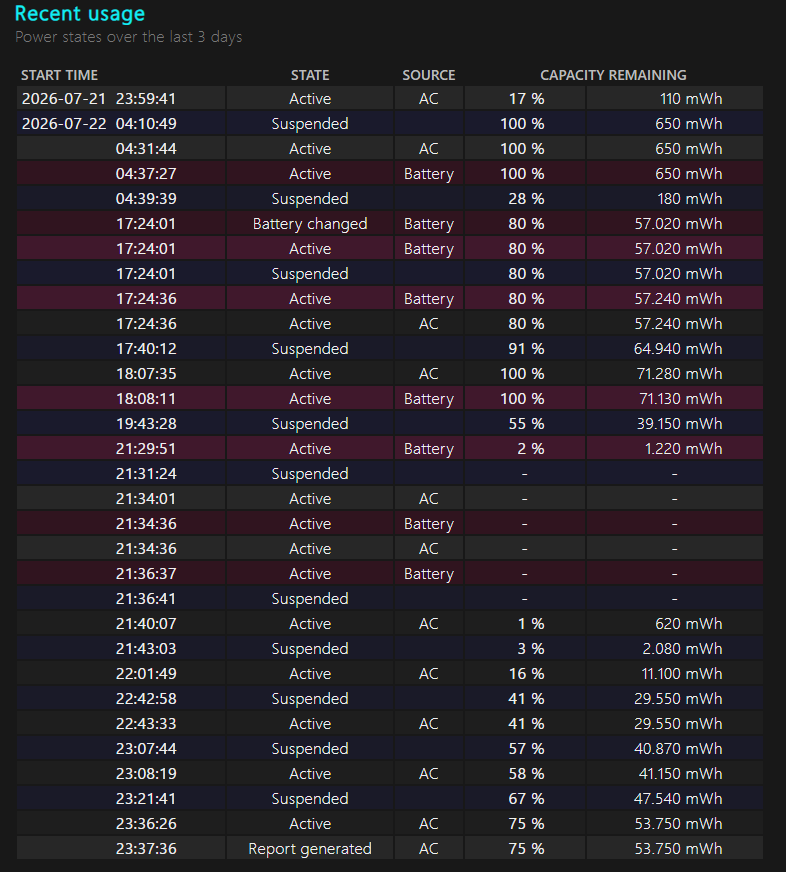
Another Useful Section: Recent Usage
Another part of Battery Report that I found very useful was Recent Usage.
This section records:
When the charger was connected or disconnected Battery percentage over time Charging sessions Sleep and wake events Battery capacity during each session
It made it much easier to verify that the new battery was charging correctly and behaving normally.
As shown in the screenshot, the report also includes a section indicating that the battery was replaced at 5:24 PM.
What I Learned
Before this experience, I had no idea Windows included such a detailed battery diagnostic tool.
With a single command, I was able to view:
Battery health Design capacity Full charge capacity Charging history Usage history Battery wear Overall battery condition
Instead of guessing whether my battery was failing, I finally had accurate data to support my decision to replace it.
If you think your laptop battery isn’t performing as well as it used to, I highly recommend generating a Battery Report before buying a replacement.
Simply run:
powercfg /batteryreport
It only takes a few seconds and can tell you exactly how healthy your battery really is.